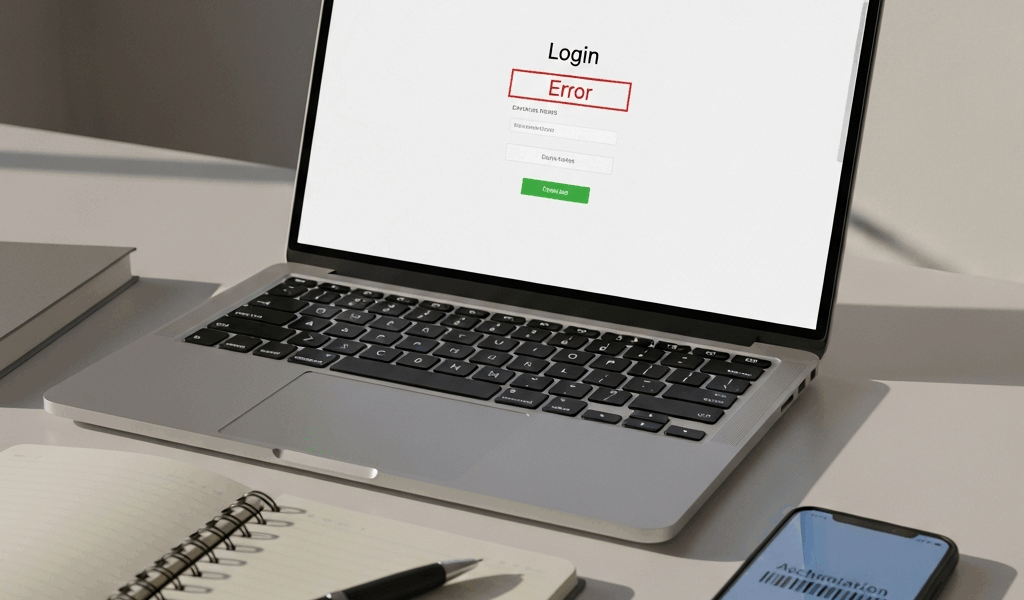
Aviate AI Login Not Working — Here’s the Fix
I spent three hours locked out of my Aviate AI account last Tuesday. Turned out I’d hit the failed login attempt threshold twice in rapid succession, didn’t know there was a waiting period, and kept trying the same password over and over. The frustration was real—especially since the error message was vague enough to send me down a rabbit hole of password reset attempts that went nowhere.
Login issues with Aviate AI have gotten frustrating with all the different reasons they pop up. I’ve narrowed down the five most common culprits here with exact fixes for each one.
Account Locked — Unlock in 2 Minutes
This is the fastest problem to diagnose and honestly, the most common one I see reported.
Enter an incorrect password more than five times within a 10-minute window, and Aviate AI automatically locks your account for 15 minutes. It’s a security measure. The system doesn’t tell you this upfront—it just displays a generic “Login failed” message after the sixth attempt, which sends most people straight into panic mode.
Here’s what to do:
- Stop entering your password. Seriously. Any more attempts will reset the 15-minute timer.
- Wait exactly 15 minutes from your last failed attempt. Set a timer if you need to.
- Go back to app.aviate.ai and try logging in again with your correct password.
You’ll see “Too many login attempts. Please try again later.” That’s your cue that the account is still locked.
Waited 15 minutes and still locked out? Your account may have additional security restrictions kicked in. This happens when Aviate detects login attempts from unusual locations or devices. Use the Account Recovery link directly below the login form on the Aviate sign-in page — it bypasses the standard login flow entirely.
The recovery page asks you to verify ownership using your registered email address. Check your inbox carefully, including spam and promotions folders. I found mine sitting in spam once, which probably should have been my first stop, honestly. Click the verification link, confirm your identity, and you’ll regain access within minutes.
Password Reset Isn’t Working
Password reset failures usually break down into three categories: the email never arrived, the reset link expired, or your browser is sabotaging the process with cached data.
First, the email problem. You clicked “Forgot Password,” entered your email, and nothing showed up. Start by checking your spam folder. Gmail throws Aviate emails into spam more often than you’d think — I don’t know why, but it happens consistently. If it’s not there, check your promotions tab.
Email didn’t arrive after 5 minutes? Request a new one. There’s no penalty for this. Go back to the login page and click “Forgot Password” again. Wait another 5 minutes. Still nothing? Your email might be registered under a different address in the system. Try any alternate email you’ve used with Aviate.
Second, the expired link issue. Aviate AI password reset links expire after 24 hours. Requested a reset yesterday and just now trying to use it? You’ll see an error like “This link is no longer valid.” Request a fresh reset link.
Third, browser cache. This one I learned the hard way. Your browser is caching the old login page, so even though you’re typing in a new password on what looks like a fresh page, it’s actually submitting your old credentials. Clear your browser cache entirely.
Chrome: Press Ctrl+Shift+Delete (Windows) or Command+Shift+Delete (Mac). Select “All time” from the time range dropdown. Check “Cookies and other site data” and “Cached images and files.” Click “Clear data.”
Safari: Click “Safari” in the top menu, select “Settings,” go to the “Privacy” tab, and click “Manage Website Data.” Search for “aviate” and click “Remove.” Then click “Done.”
Firefox: Press Ctrl+Shift+Delete (Windows) or Command+Shift+Delete (Mac). Make sure “Cookies and Site Data” is checked. Click “Clear Now.”
Edge: Press Ctrl+Shift+Delete. Select “All time,” check “Cookies and other site data,” and click “Clear now.”
Close your browser completely after clearing cache and reopen it. Try the password reset again from scratch.
Two-Factor Authentication (2FA) Errors
Two-factor authentication adds security, but it can create login friction if something goes wrong.
The most common 2FA issue is a time sync problem with your authenticator app. Your phone’s internal clock and Aviate’s server need to be in sync to the second. Off by even 30 seconds, and your codes won’t work.
Check your phone’s clock. Go to Settings, find “Date & Time,” and make sure it’s set to automatic. This usually fixes it immediately.
Using Google Authenticator, Microsoft Authenticator, or Authy? You can manually sync the time within the app itself. Open your authenticator app, go to settings (usually three dots in the corner), and look for “Time correction” or “Sync now.” Tap it.
There’s another common mix-up worth mentioning. TOTP is the 6-digit code that changes every 30 seconds. SMS authentication is a code texted to your phone. Aviate supports both, but you can only have one active at a time. Trying to use your authenticator app but Aviate is configured to send SMS codes? You’ll get “Invalid code” no matter what you enter. Check your security settings — log in from a device that still has access, go to Settings > Security > Two-Factor Authentication, and verify which method is active.
Lost your authenticator app? You should have backup codes. These are typically 8-10 alphanumeric codes printed when you first set up 2FA. Find them — check your email, password manager, or any notes you saved — and use one to log in. It’s a single-use code, so don’t worry about entering it wrong. After logging in using a backup code, immediately go to Settings > Security and disable 2FA. Then set it up again from scratch using your current authenticator app.
Both your authenticator app and backup codes are gone? Contact Aviate support (details below). You’ll need to verify your identity, but they can manually disable 2FA on your account so you can regain access.
Browser or Device-Specific Issues
Sometimes the login works fine in Chrome but fails completely in Safari. That’s frustrating because it makes you wonder if it’s actually your account or your browser.
It’s usually your browser.
Test the login in a different browser to confirm the problem is browser-specific. Log in successfully in Firefox but not Chrome? You’ve isolated the issue.
The culprit is usually one of three things: cookies aren’t being saved, JavaScript is disabled, or a security extension is blocking the login script.
Cookies: Aviate needs to set cookies to maintain your login session. Browser set to reject all cookies or blocked cookies for aviate.ai specifically? The login will fail. Go to your browser’s cookie settings (usually under Privacy or Security) and either allow all cookies or whitelist app.aviate.ai specifically.
JavaScript: Aviate’s login form requires JavaScript to function. Disabled JavaScript globally? Enable it. Chrome: Settings > Privacy and Security > Site Settings > JavaScript, set to “Allowed.” Firefox: Type “about:config” in the address bar, search for “javascript.enabled,” and set it to “true.”
Security extensions: Ad blockers like uBlock Origin, Privacy Badger, and Ghostery sometimes block third-party scripts that Aviate’s login form depends on. You’ll get no error — the login button just won’t do anything when you click it. Fix this by whitelisting aviate.ai in your extension. Right-click the extension icon, click “Manage,” find the allowlist or whitelist section, and add app.aviate.ai and aviate.ai. Refresh the login page and try again.
VPNs can cause issues too. Aviate’s servers sometimes flag logins from VPN addresses as suspicious, which triggers additional verification steps. Try disabling your VPN and logging in from your regular connection. If that works, you can either disable the VPN during login or contact support to whitelist your VPN’s IP range.
Still Stuck — What to Do Next
None of the above worked? Time to contact Aviate support.
Go to aviate.ai/support and click “Contact Us.” Fill out the form with your email address, a clear description of what’s happening — don’t just say “can’t log in,” say something like “Password reset link expired after 24 hours and new reset requests aren’t generating emails” — your browser and operating system, and screenshots of any error messages you’re seeing.
Aviate’s support team typically responds within 24 hours during business days. Weekends usually take 48 hours.
Here’s what they’ll likely tell you: if your account is locked due to suspicious activity, they can manually unlock it. Lost access completely and can verify your identity by responding from your registered email? They can reset your password directly. Technical glitch on their end preventing password resets? They’ll escalate to their engineering team and give you a timeline for resolution.
The key to fast support is being specific. “It’s not working” gets you generic responses. “I’m getting error code 403 on the password reset confirmation page” gets you a real solution — don’t make my mistake by being vague about it.




Stay in the loop
Get the latest aviate ai updates delivered to your inbox.